
Write a ticket an agent can finish
A ticket is the whole brief an agent gets, and it cannot ask you what you meant until it has already spent a run guessing. Write the outcome and how you will check it, give it the context you would give a colleague, pick a mode, and it comes back finished.
Before you begin
Section titled “Before you begin”- A board whose tickets run in a repo: Point the board at your code. A ticket can also pick its own Working directory in the form.
Say what done looks like
Section titled “Say what done looks like”- In the header, click Create (the + on a narrow screen), or press
c. - In Summary, write the outcome in a few words: “Export the list as CSV”, not “Look at the export code”.
- In Description, say what should be true when the work is done and how you will check it. Leave the steps to the agent unless one of them really matters.
- Click Create.
Result: the ticket lands in the column set in Column (To Do unless your board says otherwise), and the agent claims it on its own branch.
A vague ticket and a good one
Section titled “A vague ticket and a good one”| Vague | Good |
|---|---|
| Summary: Fix the export | Summary: Export the list as CSV |
| Description: The export is broken, please look into it. | Description: The Export button on the list view should download a .csv with one row per item and a header row. Fields with commas or line breaks must survive a round trip through Excel. Done when a test covers the header row and a title containing a comma, and the existing tests still pass. |
| Why it fails: “broken” names no symptom and “look into it” names no end. The agent guesses what is wrong, fixes something, and you find out in review that it was not the thing you meant. | Why it works: the outcome, the edge case you care about and the check are all written down, so the agent knows when to stop and you know what to test in review. |
| Vague | Good |
|---|---|
| Summary: Improve the onboarding | Summary: Cut the onboarding walkthrough to three screens |
| Description: Make it better and more modern. | Description: The walkthrough explains the UI. It should explain the workflow instead: capture, sort, do. Three screens at most. Keep the existing illustrations. Done when a new user can reach the board in three clicks. |
| Why it fails: “better” and “modern” are taste, and the agent’s taste is not yours. It rewrites everything, including what you liked. | Why it works: it names the change, the limit and what must not move. For taste-heavy work like this, also pick a plan mode so you see the approach first. |
Patterns that fail, and their fix
Section titled “Patterns that fail, and their fix”- The investigation with no end. “Look into why the build is slow.” The agent reads code until its budget runs out. Fix: ask for a deliverable (“Write the three biggest causes, with timings, in a comment”) or a target (“Get a clean build under two minutes”).
- Steps instead of an outcome. “Open
export.py, add a function, call it from the view.” If step two is wrong, the agent follows it anyway. Fix: say what should be true, and add a step only when it is a real constraint (“use the standardcsvmodule, no new dependency”). - Two tickets in one. “Add CSV export and also fix the date picker.” One gets done well, the other half done, and the review mixes them. Fix: one outcome per ticket. For bigger work, Split big work into subtickets.
- Missing context the agent cannot find. “Do what we agreed in the thread.” The agent was not in the thread. Fix: attach it, or paste the decision in.
- No way to check. “Make it faster.” Faster than what? Fix: a number, a command or an example that must pass. If you want the board to hold the agent to it, see Verification checks.
- A decision you have not made. “Add auth (whichever kind).” The agent picks one and you undo it in review. Fix: decide first, or pick a plan mode so the choice comes to you before any code is written.
Before you press Create
Section titled “Before you press Create”- The Summary is an outcome, not an activity.
- The Description says how you will know it is done.
- Anything the agent must not change is named.
- Links, screenshots and earlier tickets it needs are attached or referenced.
- The Working directory is the repo you mean.
- The Mode matches how sure you are of the approach.
Attach context
Section titled “Attach context”The agent reads what you attach before it starts, so it does not have to rediscover a decision.
- In the Create ticket form, click the Context (optional) field.
- Search for a ticket or a Knowledge Base page by its title, or paste a Slack, Jira or GitHub link and pick Attach this link (or press Enter).
- Repeat for each item. Each one shows as a chip; hover a chip to see its title, and remove it with its x.
When it can, the board fetches a snapshot of a link as you attach it (the chip’s hover says snapshot attached for the agent), so the agent reads the thread or the issue as it was then. The agent gets all of it on its first turn, marked as background rather than as instructions.
Result: the ticket opens with the context attached, and the agent reads it before anything else.
Paste screenshots and files
Section titled “Paste screenshots and files”Paste or drag an image or a file straight into Description. It uploads and shows in place,
and the agent can open it. Type / in the description for the image and file blocks. A file can
be up to 25 MB.
Mention another ticket
Section titled “Mention another ticket”Type the board’s acronym and a dash, like AK-, and pick the ticket from the list, or type #
and a few words to search tickets, Knowledge Base pages and artifacts. A reference like AK-123
shows as a chip coloured by that ticket’s status; hover it for the title, click it to open the
ticket.
The agent is told on every turn which tokens in the ticket match tickets on this board, with a
tool call to read each one. A bare #146 is not treated as a ticket, because it usually means a
GitHub pull request. To change the acronym, open the board menu, pick Board settings… and
edit Ticket acronym.
Links to GitHub pull requests and Jira issues in the description or the comments also show as chips in the Links row at the top of the ticket, so you can open them in one click.
Dictate instead of typing
Section titled “Dictate instead of typing”With voice control on, click into Description and speak: the words are typed where the cursor is. Turn it on in Settings > Automation > Voice control; see Talk to the board.
Pick a mode
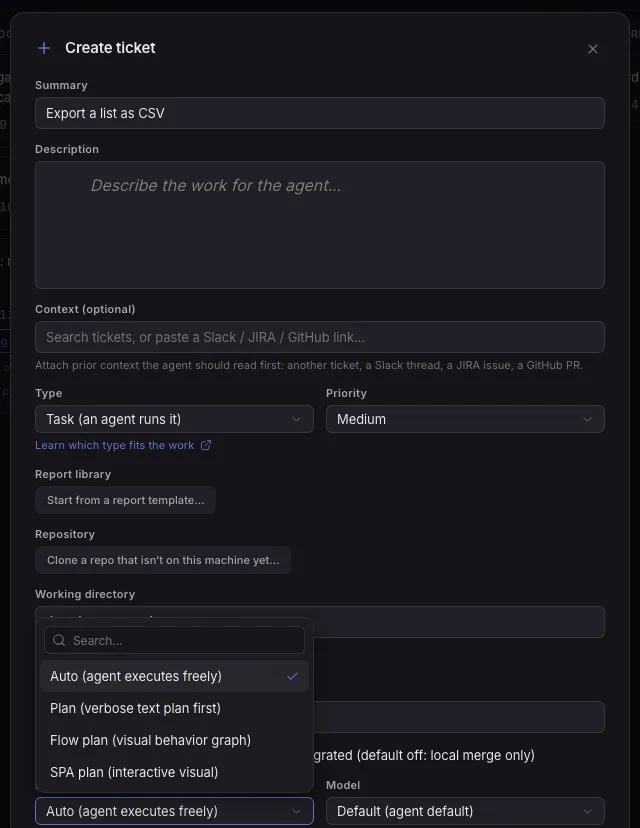
Section titled “Pick a mode”Mode decides whether the agent starts building straight away or shows you its approach first. The form opens on the board’s Default mode for new tickets (Settings > Workspace > New ticket defaults).
| Mode | What happens | Use it when |
|---|---|---|
| Auto (agent executes freely) | The agent builds, commits on its branch and moves the ticket to In Review, or asks you when it is stuck. | You know what you want and a wrong approach is cheap to throw away: a bug with a clear symptom, a small feature, a chore. |
| Plan (verbose text plan first) | The agent reads the code, writes a markdown plan and parks in Pending Action. Nothing is edited until you accept. | The approach matters more than the code: a refactor, a migration, anything that touches many files. |
| Flow plan (visual behavior graph) | Same, with the plan as a graph of behaviour blocks you can edit and annotate. | The work is a flow: a pipeline, a state machine, a multi step process with branches. |
| Interactive plan (visual) | Same, with the plan as an interactive page (mockups, options side by side, diagrams) that you annotate element by element. | The work is visual or you want to choose between options: a UI change, a design decision. |
- In the Create ticket form, open Mode.
- Pick one.
Result: in Auto the agent starts building. In a plan mode it comes back to Pending Action with a plan; Review and annotate a plan covers what to do with it. Accepting a plan switches the ticket to Auto. Why this is the cheapest place to change your mind is in Plans you can point at. An Epic has no Mode: it runs no agent.
Pick a model and a thinking level
Section titled “Pick a model and a thinking level”- In the Create ticket form, open Model. Default uses Default model in Settings > Agents. Pick another model for this ticket only, or Custom version / id… to type an exact model id.
- Open Thinking level. Default uses Default thinking level in Settings > Agents > Model & thinking. The list only shows the levels the chosen model supports.
A stronger model and more thinking cost more per run. Save them for the tickets that need judgement; a small, well specified ticket does fine on the default. You can change both later from the reply box, for the next run.
Result: the ticket runs on the model and thinking level you picked, shown as chips next to the reply box.
Set a priority
Section titled “Set a priority”In the Create ticket form, set Priority to Low, Medium (the default), High or Urgent.
When more tickets wait in To Do than the board runs at once, the runner starts the higher priority ones first; within a priority, the order in the column decides. A column can also be sorted by priority (Organize the board).
Result: the card carries its priority icon, and it jumps the queue ahead of lower priorities.
Related
Section titled “Related”- Review and annotate a plan, for what to do when a plan comes back.
- Follow and steer a running agent, to correct course while it works.
- Recipes: tickets that work, for tickets to copy.
- Which tool when, to choose between a task, an Epic, a Loop and a Goal.
- Columns, modes and tags, for the full list of modes and columns.