
Approve a tool request
When an agent reaches for a tool or a command outside its pre-approved set, the run pauses and the ticket moves to Pending Action until you answer. You end with the agent carrying on (or told why not), and, if you choose, never asked about that command again.
Why the board asks is in The permission gate.
Before you begin
Section titled “Before you begin”- A ticket in Pending Action whose banner reads Agent needs permission. The card on the board says needs permission.
Answer the request
Section titled “Answer the request”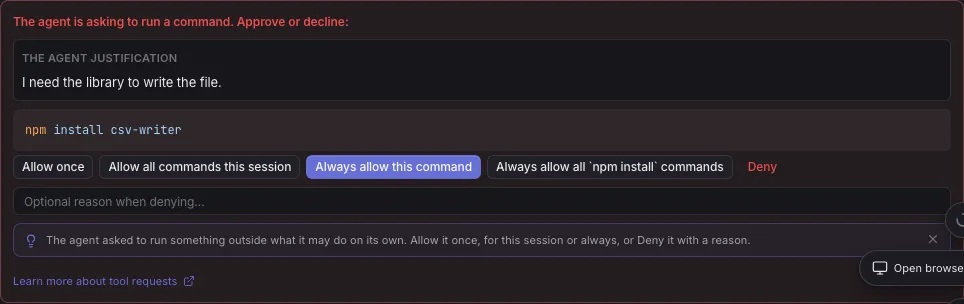
- Open the ticket and click Review request ↓ in the banner. The panel sits under the agent’s request in the timeline: The agent is asking to run a command. Approve or decline: (or …to use a tool), with The agent justification and the command. Read any warning on it: Irreversible, Flagged because: …, or the files it Deletes.
- Pick one:
- Allow once: this one call.
- Allow for the rest of this session (Allow all commands this session for a shell command): every such call until the ticket starts a fresh agent session. A session survives replies and resumes; a restart from scratch ends it.
- Always allow this tool or Always allow this command: persisted across all
future runs of every ticket, which adds it to an allow list (see
Permission lists). For an MCP tool, Always allow
all … tools covers the whole server; for a command, Always allow all …
commands covers its family (for example every
npm install). - Deny, with an optional reason (Optional reason when denying…) that is sent back to the agent.
Result: whichever you pick, the ticket goes back to To Do and the runner resumes the agent: with the tool if you allowed it, with your reason if you denied it.
Board actions an agent asks the board itself to take are approved per session only, so their panel says Board actions are approved per session, never permanently. and offers no always option.
You can also answer from Catch up without opening the ticket: its card offers Allow once, a session option, Always allow and Deny (the family and whole server options are only on the ticket). See Answer what the board asks you.
Take a grant back
Section titled “Take a grant back”Every grant you gave on a ticket is listed on it, so you can undo one you regret.
- Open the ticket and find the Allowed permissions section. Each row reads Run … or Use …, with its scope: once, this session, always, always (family) or always (whole server).
- Click Remove on the row (or Remove grant on the decision in the timeline).
- Confirm Remove.
Result: the grant is gone and the agent has to ask again the next time. For an always grant, the entry is also taken off the board wide allow list, so no other ticket gets it either.
Stop being asked
Section titled “Stop being asked”Always allow is the quick way. To manage the lists directly, or to ban something
outright, use Settings > Security: Command permissions for shell commands and
Tool & MCP permissions for tools, including mcp__<name>__* for a whole MCP server.
- Open Settings > Security > Command permissions.
- Click + Add command, type the command prefix (for example
npm install) and set it to Allow (runs without asking), Ask (always asks you) or Deny (blocked outright). Deny beats Ask, and Ask beats Allow. - Click Save.
Every Always allow you clicked is a row here; remove a row to take it back. A dangerous
command (a recursive delete, sudo, git push) is never approved by the built in safe
baseline: to let one through without asking, set it to Allow here.
Result: the next time an agent runs a command under that prefix, it runs (or is refused) without a panel.
If something goes wrong
Section titled “If something goes wrong”An agent ran a command without asking
Section titled “An agent ran a command without asking”Check the ticket’s engine. Runs on Cursor, and on Codex with the older exec transport, are not
gated by the board: their commands never reach this panel. The ticket shows an Engine parity
comment when that is the case. See
The permission gate.
Related
Section titled “Related”- Permission lists, for every list the gate checks.
- The permission gate, for why it asks and where it does not hold.
- Answer what the board asks you, for the other reasons a ticket parks.