
Answer what the board asks you
When an agent needs something only you can give, the ticket moves to Pending Action and the board tells you (the bell, and a push on your phone if you turned it on). Each reason below has its own card on the ticket; answer it and the ticket goes back to To Do, where the agent picks up from where it stopped.
Before you begin
Section titled “Before you begin”- A ticket in Pending Action. Open it: a banner at the top names the reason and jumps to the card (Answer question ↓, Review request ↓).
Sign off a plan
Section titled “Sign off a plan”A ticket in a plan mode stops with a plan before it changes anything. The Plan section says awaiting sign-off, and the card on the board says awaiting plan sign-off.
- Read the plan. Select any words you want changed and annotate them.
- Click Accept plan to let the agent build it, or write what should change and click Reject with feedback to have it revise the plan.
Result: accepted, the ticket switches to Auto and goes to To Do; rejected, it goes to To Do in its plan mode and comes back with a new plan. The whole flow, with the flow and interactive plans and handing a plan to a subagent, is in Review and annotate a plan.
Answer a question
Section titled “Answer a question”An agent can ask you to choose, rather than guess. The card reads The agent is asking you to choose:, with one or more questions and their options.
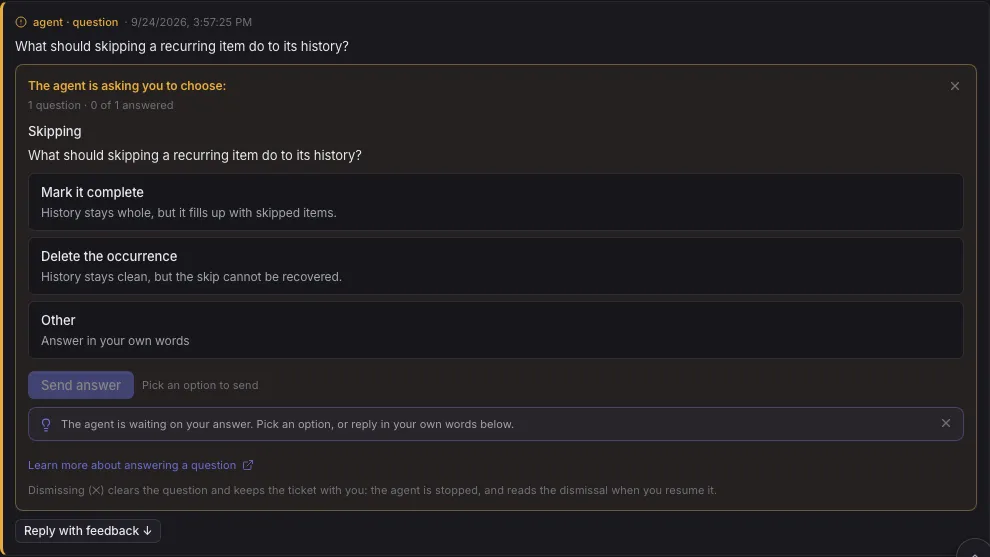
- For each question, click an option. A question marked Pick one or more takes several.
- To answer in your own words, pick Other and write in Your answer. On any option you can also Add details (optional).
- Click Send answer (Send answers when there are several questions). It is enabled once every question has an answer.
Result: your answer is posted as Answered your question and the ticket goes back to To Do. The agent reads your pick and carries on.
If none of the options fits and you would rather talk it through, click Reply with feedback ↓ under the card and write a reply instead. To drop the question entirely, click the x on the card and confirm Dismiss: the agent is stopped and the ticket stays with you, and the agent reads the dismissal when you resume it.
Approve a tool request
Section titled “Approve a tool request”When an agent reaches for a command or a tool outside what it may use on its own, it asks. The panel reads The agent is asking to run a command. Approve or decline: and shows the command and the agent’s reason.
- Read the command and the reason.
- Click Allow once, allow it for the session, Always allow it, or Deny it with an optional reason.
Result: either way, the ticket goes back to To Do and the agent carries on with the answer. Every option, and how to take a grant back, is in Approve a tool request.
Do a manual step
Section titled “Do a manual step”Some steps only you can do: signing in to a site, running something on another machine, deciding something the ticket did not cover. The agent parks with a needs action entry on the timeline that says exactly what it needs.
- Read the needs action entry.
- Do the step. When it happens on the ticket’s computer (a sign in, a 2FA prompt, a CAPTCHA), open the computer from the bottom right of the ticket and do it there; see Let an agent use a browser. When it happens in the ticket’s terminal, answer the prompt in the terminal.
- In Comment / reply, write what you did or the answer it asked for.
- Click Reply to agent.
Result: your reply is posted and the ticket goes back to To Do; the agent resumes with it. Comment only posts without resuming, and Resume → To Do resumes after you write.
When the step is on the computer or in the terminal, Hand back in that panel does steps 3 and 4 for you.
Resolve a merge conflict
Section titled “Resolve a merge conflict”When the board merges a finished branch and hits a conflict it cannot resolve on its own, it keeps the branch and the worktree and parks the ticket with a needs action entry naming the files. The card on the board says merge conflict, and the ticket’s git section shows Needs attention.
- Click Resume → To Do (or reply with any guidance and click Reply to agent).
Result: the agent resolves the conflict on its branch and finishes again. To resolve it yourself instead, see Resolve a merge conflict.
Raise or hold a budget
Section titled “Raise or hold a budget”An agent close to its ticket’s spend limit can ask for more. The budget request card shows Spend with what was spent against the cap, and a suggestion.
- Click Raise to the suggested amount to set it as the ticket’s new cap and let the agent carry on, or Stop here to hold the cap.
Result: raised, the ticket goes to To Do; held, the agent is stopped and the ticket stays in Pending Action.
When a board or ticket budget is already spent, the board does not start the next turn at all: a needs action entry says the run was not started. Raise the ticket’s Spend limit or the board’s budget, then click Resume → To Do. Both are in Track usage and cap spend.
Other reasons a ticket waits
Section titled “Other reasons a ticket waits”Some parked tickets need nothing from you: they come back on their own.
- A usage limit. The run is paused until your plan’s limit resets, and a note says when it resumes. Cancel auto-resume keeps it parked for you instead.
- Waiting on subtickets or background tasks. The agent is waiting for work it started; it wakes when that work ends.
- A failed run queued for a retry. A note says when it retries.
- You stopped it. Reply and click Resume → To Do to carry on.
A Loop’s approval step also parks its run here, with Approve & continue and Reject; see Run a Loop.
Answer from Catch up
Section titled “Answer from Catch up”Catch up in the header (or g) walks you through everything new, one ticket per card.
- Click Catch up.
- On a plan card, click Accept plan, or Reject with feedback, write what should change and click Send feedback.
- On a tool request, click Allow once, allow it for the session, Always allow it, or Deny it.
- On a question or a manual step, click Open to answer it on the ticket.
- Click Seen (or swipe right) to move on, Skip (or swipe left) to come back to it.
Result: you clear what is waiting without opening each ticket. The run ends on You’re all caught up.
Answer from a notification or your phone
Section titled “Answer from a notification or your phone”The bell lists everything that needs you under Needs you. Click an entry to open its ticket, then answer there. On a phone, install the board as an app and turn on push notifications, and a question, a tool request or a plan reaches you as a push; tap it to open the ticket and answer. Push notifications have no buttons of their own. Choose how the board notifies you and Reach the board from your phone set both up.
Related
Section titled “Related”- Follow and steer a running agent, to catch a problem before it parks.
- Columns, modes and tags, for what each column means.