
Let an agent use a browser
Agents can drive a browser: read a page, click through a flow, fill a form, test the app they just built. Each ticket gets a browser, its computer, which you can watch live and take over whenever it needs a person, such as a sign in, a second factor or a CAPTCHA. By default the tickets on a board share one browser, so a sign in lasts, but each ticket only sees its own tabs (share one computer across tickets).
Before you begin
Section titled “Before you begin”- Settings > Connections > Built in browser set to Per ticket computer (the default) for everything on this page except the last section.
Watch the computer
Section titled “Watch the computer”The computer starts the first time the agent uses a browser tool on the ticket. From then on a monitor icon sits at the bottom right of the ticket (This ticket’s computer), and the computer shows as a row in the ticket’s running tasks, where you can stop it.
- Click the monitor icon. The Computer panel opens: an address bar, the tabs, and the page the agent is on, live.
- Click the full screen icon for a bigger view, and Minimize (or Esc) to come back.
To start a computer before the agent does (to sign in ahead of time, say), pick Start computer in the ticket’s … menu.
The chip beside Computer tells you who drives: view only while the agent’s run is live, you can drive once it is not, needs you when the agent parked for you.
Result: you see what the agent sees as it works.
Take over for a sign in
Section titled “Take over for a sign in”An agent never asks for your password in the chat. When a site needs a person (a sign in, a second factor, a CAPTCHA, a consent screen) it leaves the page open on the computer and parks the ticket in Pending Action, naming the site and the step.
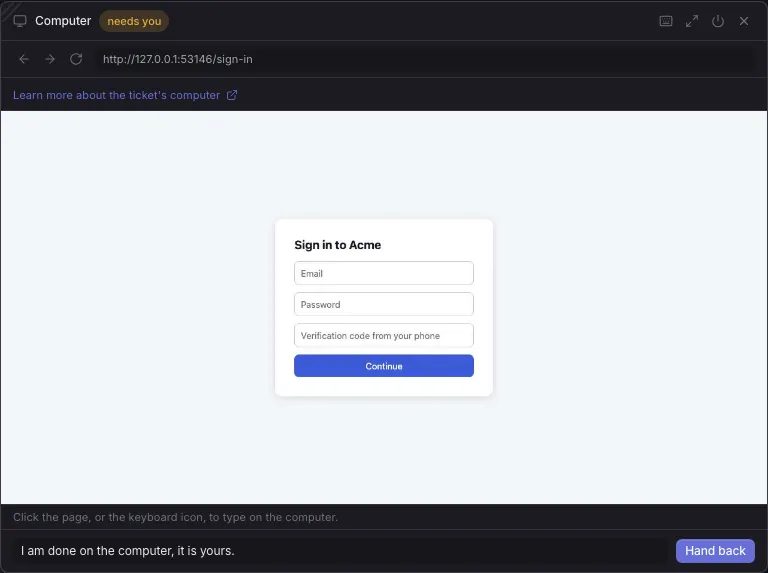
- Open the ticket. The monitor icon now reads Open browser; click it.
- Click the page (or the keyboard icon, Type on the computer) and do the step: type your email and password, the code from your phone, solve the CAPTCHA. The back, forward and reload buttons and the address bar work as in any browser.
- At the bottom, check the reply in Reply when handing back (“I am done on the computer, it is yours.” unless you change it).
- Click Hand back.
Result: the ticket goes back to To Do and the agent carries on, signed in. The computer keeps its logins for the life of the ticket: stopping it (Stop the computer (logins are kept)) keeps them, and archiving or deleting the ticket deletes them.
To fill the sign in from a password manager instead of typing, add its extension to every ticket’s computer: Use a password manager on a ticket’s computer.
Share one computer across tickets
Section titled “Share one computer across tickets”Share the computer’s sign-ins, under Settings > Connections > Built in browser, decides how many tickets drive one browser. A board can override it in its own settings.
| Choice | What it means |
|---|---|
| Per board (default) | Every ticket on the board drives one shared browser. You sign in once, and every ticket on the board is signed in. |
| Every board | One browser for every ticket on every board. |
| Per ticket | Each ticket gets its own browser, and you sign in again on each ticket. |
In a shared browser, each ticket still only sees its own tabs, plus the popups they open. The agent, and the panel’s tab strip, never see another ticket’s tabs. No ticket can quit the browser. Stop in the panel closes this ticket’s tabs, and the board stops the browser once no ticket has a tab left in it. The sign-ins stay for the next ticket.
Choose the browser session
Section titled “Choose the browser session”Settings > Connections > Built in browser has one choice, Built in browser session:
| Session | What the agent gets | Use it when |
|---|---|---|
| Per ticket computer (default) | Its own browser per ticket, kept for the life of the ticket, that you can watch and take over. Extensions you add load on every ticket’s computer. | Almost always: you can see the work and step in for a sign in. |
| Fresh isolated browser | A new headless browser for every run, with nothing kept between runs and nothing to watch. | Throwaway browsing that must never carry a login or a cookie from one run to the next. |
| Existing Chrome session | Your own signed in Chrome tabs, shared on purpose through the official Playwright MCP Bridge extension (Install the official Playwright MCP Bridge under Connect existing Chrome). | The agent needs a session you already have and cannot sign in again on the computer. |
- Open Settings > Connections > Built in browser.
- Pick the session and click Save.
Result: the next run uses that browser. Runs already going keep theirs.
If something goes wrong
Section titled “If something goes wrong”The browser is stopped.
Section titled “The browser is stopped.”The computer was stopped: by you, or by the board when the ticket reached In Review or Done. Click Start browser in the panel. Its logins are still there.
Disconnected from the computer.
Section titled “Disconnected from the computer.”The live view lost its connection. Click Reconnect.
This tab stopped responding
Section titled “This tab stopped responding”The page got stuck (a script that never ends, or a dialog nobody can answer), so your clicks and typing no longer reach it. Click Reopen tab: the board opens the same address in a fresh tab and closes the stuck one. Your logins are kept. While the agent is working, it does this itself when it next opens the browser, and says so on the ticket.
Paused while this tab is hidden.
Section titled “Paused while this tab is hidden.”The live view pauses when the board’s tab is not visible, to save work. Come back to the tab and it resumes; the computer itself kept running.
Related
Section titled “Related”- Use a password manager on a ticket’s computer, to sign in without typing.
- Answer what the board asks you, for every other reason a ticket parks.
- Follow and steer a running agent, for the terminal that sits beside the computer.