
Review and annotate a plan
A plan is the agent’s approach, written down before it changes anything. You review it where it stands: point at the exact words, block or element you disagree with, send your notes back until it is right, then accept it and the agent builds exactly that.
Before you begin
Section titled “Before you begin”- A ticket in a plan mode (Plan, Flow plan or Interactive plan) parked in Pending Action with its Plan section marked awaiting sign-off. To get one, pick a plan mode when you create the ticket; see Pick a mode.
Annotate a text plan
Section titled “Annotate a text plan”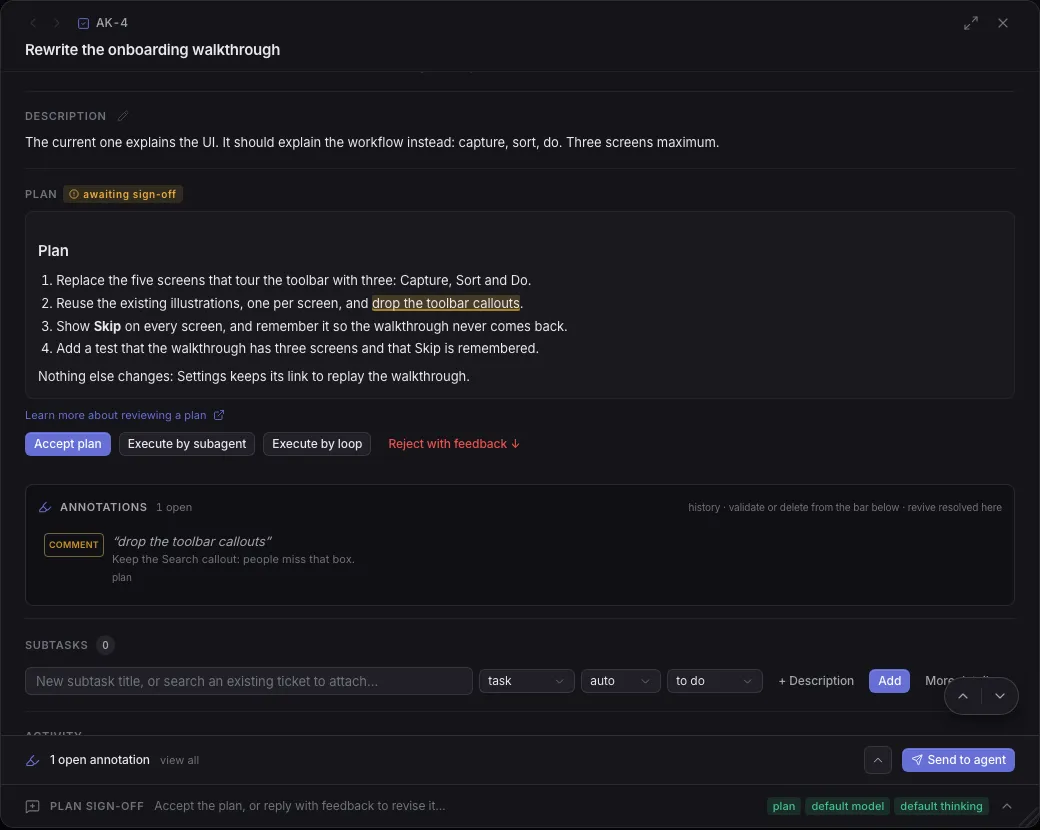
- In the Plan section, select the words you want to change. A toolbar appears above the selection.
- Pick what you want:
- Comment: a note on this text. Write it in Your comment….
- Replace: the text it should say instead, in Replace with…, and an optional note.
- Delete: mark it for removal, with an optional reason.
- Explain: ask the agent to explain this part in more detail.
- Click Add.
To annotate a whole paragraph or list item, hover it and click its handle (Annotate this block). To mark up an image in the plan, hover it and click Annotate, draw with Freehand, Rectangle, Circle or Crop, describe the change and click Finish annotation.
Result: the text is highlighted, the note shows in the Annotations panel under the plan, and the bar at the bottom counts 1 open annotation. Click a highlight to edit it, Resolve it or delete it.
Edit and annotate a flow plan
Section titled “Edit and annotate a flow plan”A flow plan is a graph of behaviour blocks (steps, decisions, loops, inputs and outputs) under Approach flow.
- Click a block to read its Behavior. Select words in it to annotate them as in a text plan, or write a Note on this block and click Add note.
- To change the graph yourself, double click a block (or click Edit): pick its kind, rename it and rewrite its behaviour, then click Done. Drag a block to move it, drag from handle to handle to add an arrow, click + Block to add one, press Backspace to delete one.
- Click Save on the canvas to keep your edits, or Cancel to put the plan back.
Click Expand to work on the graph full screen.
Result: your notes are open annotations on their blocks, and your saved edits are the plan. Saving regenerates the text plan from the graph; it does not end the sign-off.
Annotate an interactive plan
Section titled “Annotate an interactive plan”An interactive plan is an interactive page: mockups, options side by side, diagrams. You annotate it element by element.
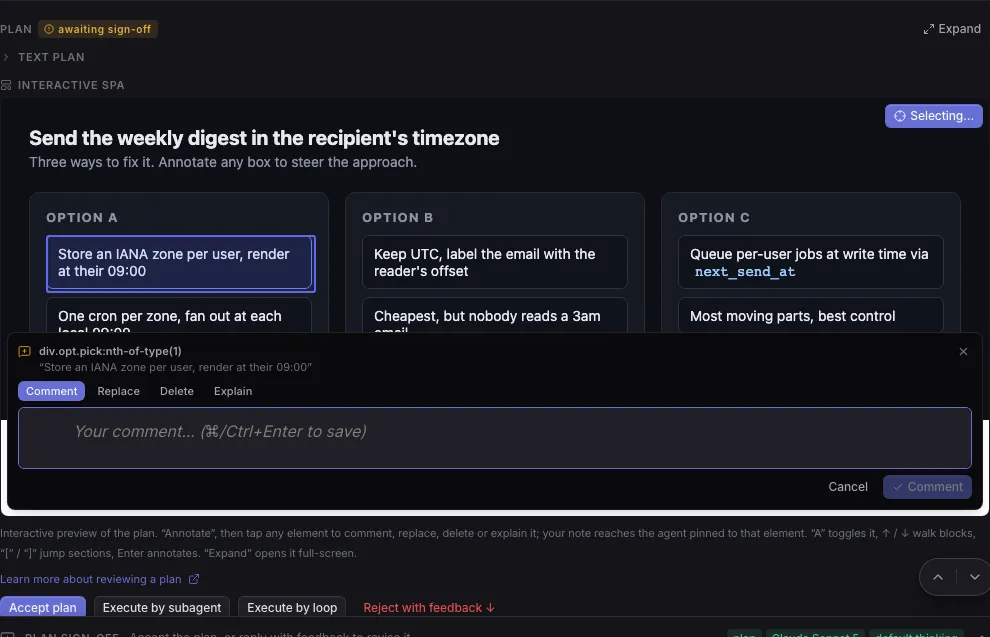
- Under Interactive plan, click Annotate (or press
a). It reads Selecting… while it is on. - Click any element in the page. A composer opens at the bottom, showing what you picked.
- Pick Comment, Replace, Delete or Explain, write your note and click the button of the same name (or press Cmd+Enter or Ctrl+Enter).
With annotate mode on, the up and down arrows walk the blocks, [ and ] jump sections and
Enter annotates. Click Expand to review the page full screen, with the same buttons.
Result: a numbered pin marks the element. Click a pin to Edit note, Resolve (mark done) or Delete annotation. The agent gets each note pinned to its element.
Send your notes to the agent
Section titled “Send your notes to the agent”- At the bottom of the ticket, check the count (2 open annotations). Click view all to go through them.
- Click Send to agent.
Result: the agent gets every open note as structured feedback, revises the plan and parks again for sign-off with the new version (v2 of 2). The notes you sent are marked resolved; revive one from the Annotations history if it comes back. Repeat until the plan is right.
Accept or reject the plan
Section titled “Accept or reject the plan”| Button | What happens |
|---|---|
| Accept plan | The plan is approved as it is, the ticket switches to Auto and goes to To Do, and the agent builds it. |
| Execute by subagent | The board hands the plan to a new child ticket, in Auto, and this ticket waits in Pending Action. Pick the child’s Model and Thinking, then Delegate. |
| Execute by loop | The same, but the child is an orchestrator that can split the plan across several agents. Shown when Agent orchestration is on. See Split big work into subtickets. |
| Reject with feedback ↓ | Scrolls to the reply box, now titled Plan sign-off. Write what should change and click Reject with feedback: the ticket goes to To Do in its plan mode and the agent revises the plan. Nothing is thrown away. |
Accepting while notes are still open asks first (Unresolved annotations remaining): those notes are not sent. Click Send to agent first if you want them addressed.
Result: the agent builds the approved plan end to end, with the plan pinned in its instructions, and finishes into In Review. What else accepting changes is in Plans you can point at.
Send your notes or reject with feedback
Section titled “Send your notes or reject with feedback”Both send the agent back to the plan. Use Send to agent when your feedback is attached to specific words or elements; use Reject with feedback when it is about the whole approach and a reply says it better.
Check what the agent will prove
Section titled “Check what the agent will prove”The Plan section also holds Verification checks: the commands the agent says it will pass before it can finish, grouped under Board gate (your board’s quality gate) and Ticket checks (its own). A Test check is a hard gate: the agent cannot finish until the command exits 0. A Goal check is advisory, for your review.
- Read the checks before you click Accept plan. If one is missing or too weak, say so in an annotation or in Reject with feedback.
Result: once you approve the plan, its checks are locked against being weakened; the agent can still add stricter ones. More in Verification checks.
If something goes wrong
Section titled “If something goes wrong”Can’t annotate that selection
Section titled “Can’t annotate that selection”The board could not pin the selection to the plan’s text, which happens most often when it spans several blocks. Select less, or annotate the whole block with its handle.
Related
Section titled “Related”- Plans you can point at, for why and when to plan.
- Answer what the board asks you, for everything else a ticket can wait on.
- Split big work into subtickets, for plans too big for one agent.