
Point the board at your code
Every ticket works in a git repository, its working directory, on a branch and worktree of its own. Set it once for the whole board, pick another one on a ticket, or leave it blank for work that has no repo; when you are done, agents land their work where you expect it.
Before you begin
Section titled “Before you begin”The repository is a git repository on the machine the board runs on, with at least one commit (an agent’s branch needs a commit to start from). A folder that is not a git repository works too, but the agent then edits it in place, with no branch and nothing to merge.
Set a default working directory
Section titled “Set a default working directory”The board’s default is the repository every ticket works in when neither the ticket nor any of its parents names one.
- Open Settings > Workspace > Board.
- In Default working directory, type the absolute path of the repository, for example
/Users/you/projects/shop. - Click Save changes.
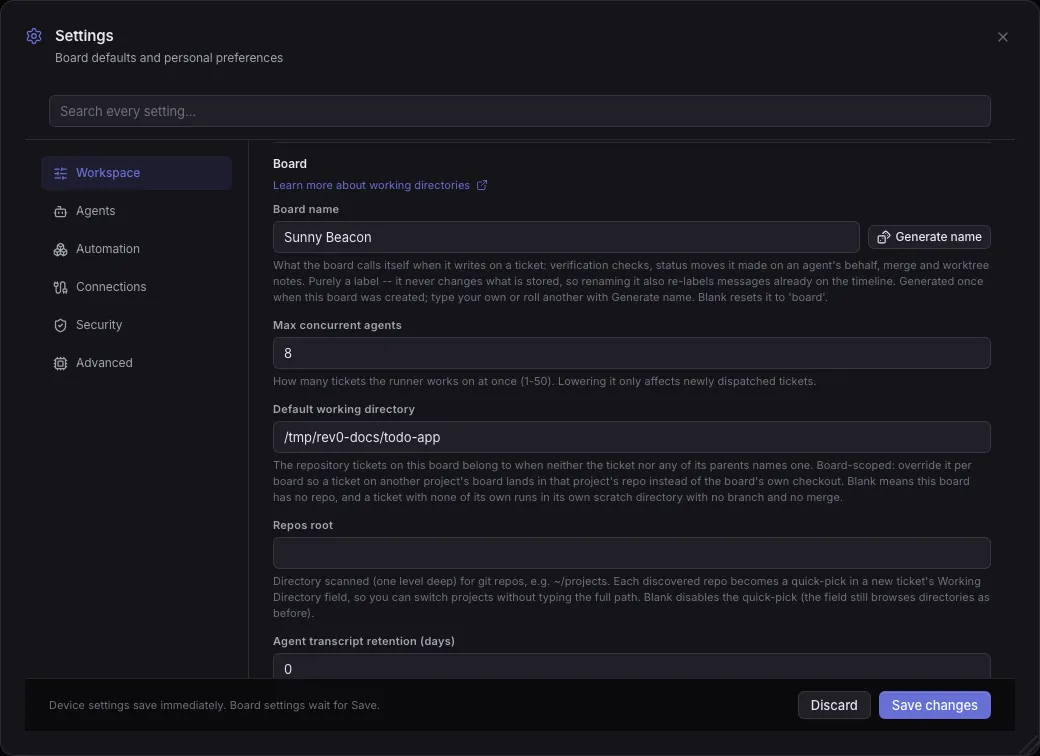
Result: new tickets fill in Working directory with this path, and a ticket you create with the field blank still runs here. Setting it also completes the Getting started coach’s first step, Point the board at your code.
Give each board its own repository
Section titled “Give each board its own repository”On a board for another project, override the default for that board only:
- Click the board name at the top left (Switch board), then Board settings….
- Under Per-board overrides, pick Default working directory in Add an override….
- Type that project’s path and click Save.
Result: tickets on that board land in its own repository; other boards keep the global default. Inherit next to the override removes it again.
Pick from the repos you have
Section titled “Pick from the repos you have”When your repositories live side by side in one folder, such as ~/projects, let the board find
them:
- Open Settings > Workspace > Board.
- In Repos root, type that folder’s path.
- Click Save changes.
Result: the board scans that folder one level deep, and every git repository in it becomes a suggestion in a new ticket’s Working directory field. Setting it also completes the coach’s first step.
Pick a repo for one ticket
Section titled “Pick a repo for one ticket”- Click Create (a + on narrower screens).
- In Working directory, start typing a repository’s name or path.
- Pick a suggestion: repositories from your Repos root first, then folders that complete
what you typed. Keep typing after a
/to go one folder deeper.
Result: this ticket, and any subticket you add under it, works in that repository. The field starts on the parent ticket’s working directory for a subticket, and on the board’s default otherwise.
Clone a repository first
Section titled “Clone a repository first”For a repository that is not on this machine yet:
- On the Create ticket form, click Clone a repo that isn’t on this machine yet… under Repository.
- In the first field, type
owner/nameor a fullhttps://github.com/owner/nameaddress. - In Clone into, type a folder, or leave it blank to clone into your Repos root.
- Click Clone.
Result: the board clones the repository with this machine’s own git credentials and fills in Working directory with the new folder. Cloning the same repository again reuses the existing clone (Already cloned).
Start from another branch
Section titled “Start from another branch”By default an agent branches off main or master, whichever the repository has.
- On the Create ticket form, set Working directory first.
- In Base branch (optional), start typing and pick one of the repository’s branches.
Result: the agent’s branch starts from that branch, and a merge lands back into it.
See where a ticket works
Section titled “See where a ticket works”Open a ticket and look at Git integration:
- Before the first run, Will run in shows the path and where it came from: the ticket, a parent, or the board’s default.
- Once the agent claimed it, Branch shows its branch (
agent/ticket-<id>by default) and Worktree the separate checkout it works in, next to your repository. Your own checkout is never touched.
To learn how a ticket’s repository is chosen, and why agents never step on each other, read Worktrees and branches.
Set repository rules
Section titled “Set repository rules”Repository rules decide how the runner names branches and titles the commits it makes itself, per repository. A repository with no rule uses the board defaults.
- Open Settings > Agents > Repository rules.
- Click + Add repo.
- In Repository, type part of the repository’s origin URL or path, such as
github.com/acme/backend, or a glob likegithub.com/acme/*. The first rule that matches wins. - In Branch name, write the pattern for new branches. It must contain
{id}and may use{slug}(the ticket title in lowercase with hyphens), for examplefeature/{id}-{slug}. - In Commit subject, write the pattern for the commits the runner makes. It must contain
{id}and may use{title},{slug}and{phase}. Blank keeps the default,chore(agent): ticket #{id} {phase}. - Click Save changes.
Result: the next ticket in that repository gets a branch and commits named your way.
Choose what reaches the base branch
Section titled “Choose what reaches the base branch”Agents commit as they go. When a run pauses and will resume later, the runner saves the work in
progress as a fixup! commit. Two settings on the same rule decide what your base branch sees:
- When a run pauses and will resume: fixup! against my last commit (the default), or A normal commit, using the pattern.
- When the branch is merged: Fold the fixups into their commits (the default), so the base branch gets the real commits rather than the pauses, or Merge the branch exactly as it is.
Either way the branch lands as a merge commit, Merge <branch> into <base>, so every ticket’s
work stays together in your history.
Work without a repository
Section titled “Work without a repository”Leave Working directory blank on a board with no default, and the ticket runs in a scratch
directory of its own under ~/.rev0/scratch. Git integration shows it as
Scratch workspace.
A scratch ticket suits work whose result is not code in one of your repositories: a research report, a comparison, a document, a one-off script, a 3D model. The agent delivers on the board: files attached as artifacts, findings in comments or its plan. The scratch folder is tracked in a throwaway git repository so you can still read the changes as a diff, but there is nothing to merge.
If a scratch ticket turns out to belong in a repository, set its working directory and run it again. Settings > Advanced > Storage frees the space old scratch folders take; see Back up and restore the board.
If something goes wrong
Section titled “If something goes wrong”give a target directory, or set a repos folder in Settings to clone into
Section titled “give a target directory, or set a repos folder in Settings to clone into”You left Clone into blank with no Repos root set. Type a folder in Clone into, or set Repos root in Settings > Workspace > Board.
The Working directory field suggests no repositories
Section titled “The Working directory field suggests no repositories”The suggestions come from Repos root, one level deep, and only list folders with a .git
directory (worktrees and dot folders are skipped). Check the path in
Settings > Workspace > Board, or type the full path yourself.
The agent works in the wrong repository
Section titled “The agent works in the wrong repository”The first of these wins: the ticket’s own working directory, its nearest parent’s, the repository it already ran in, then the board’s default. Open the ticket’s Git integration and read Will run in or Next run to see which one applied, then set the ticket’s own working directory.
Related
Section titled “Related”- Worktrees and branches, for why each ticket gets its own checkout.
- Organize the board, to run one board per project.
- Write a ticket an agent can finish, for the rest of the Create form.
- Review and merge an agent’s work, for what happens to the branch afterwards.