
Follow and steer a running agent
An agent that is running is not a black box: you can watch every step, correct it without stopping it, ask it a side question, and stop or rewind it when it goes the wrong way. This page covers each of those, from one ticket up to every agent on the board.
Before you begin
Section titled “Before you begin”- A ticket in In Progress. Open it from the board.
Follow the run
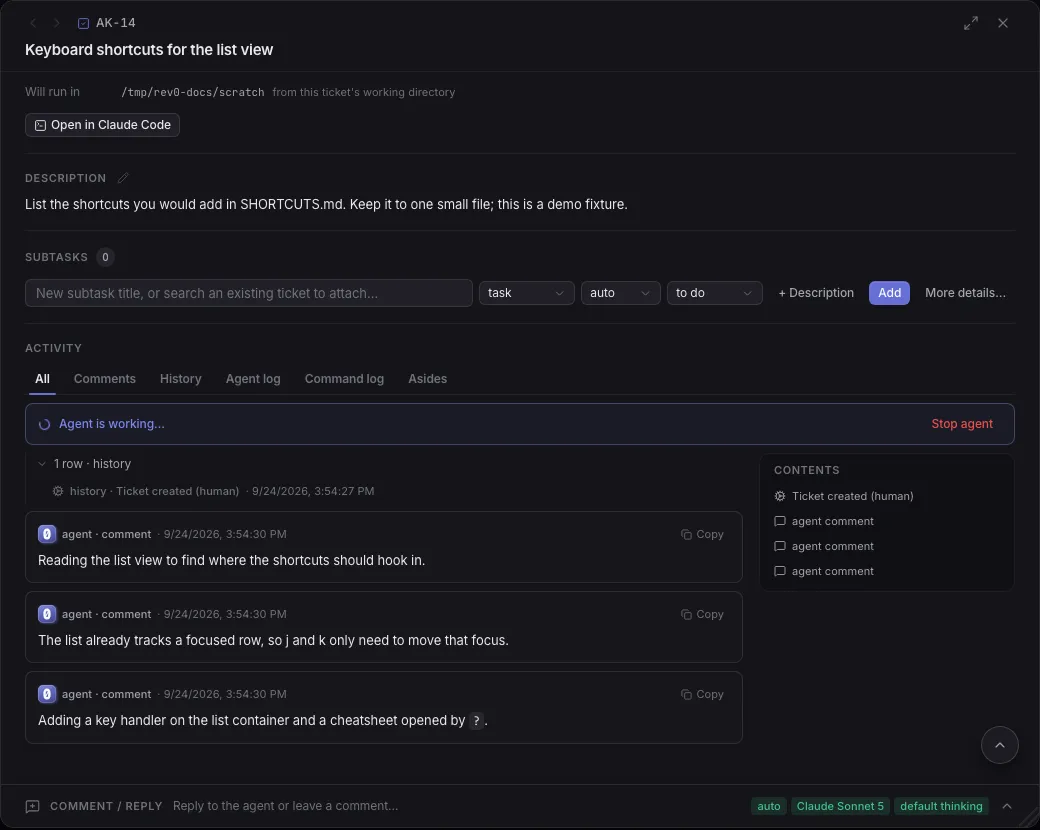
Section titled “Follow the run”The Activity section of the ticket is the live timeline. Its tabs:
| Tab | What it shows |
|---|---|
| All | Everything, newest at the bottom: comments, status changes, the agent’s work log, plans, questions. |
| Comments | Comments only, yours and the agent’s. |
| History | Status changes and board events. |
| Agent log | Only what the agent itself wrote and did. |
| Command log | Every tool call, one row each, with a count. |
| Asides | Your /btw side questions and their answers, with a count. |
While the agent works, an Agent is working… card sits at the top of the feed with a to-do counter (2/5 to-dos), the text it is streaming and its live to-do list. Each step it takes is a tool card: the tool name and a one line summary. Click a card to see its input and its result, and Show full output for the whole result. Agent work log groups fold a run’s steps together; a Sub-agent lane holds what a helper agent did.
The Contents panel beside the feed jumps to any entry.
Read the command log
Section titled “Read the command log”- In Activity, click Command log.
- Narrow it with the tabs (All, Bash, Files, MCP, Web, Tasks, Other, Errors) or type in Filter by tool, command, or args….
- Click a row to see its Arguments and its Result.
Result: you see every command the agent ran and what came back, without scrolling the story around it.
Reply while it works
Section titled “Reply while it works”You do not have to stop an agent to correct it. A reply to a running agent is queued and delivered when it finishes its current run; it does not interrupt the step it is on.
- At the bottom of the ticket, click Comment / reply.
- Write your message.
- Optionally, open Settings above the buttons and pick how the agent should take it (see the table below).
- Click Queue reply for agent (it reads Reply to agent when the agent is not running).
Result: your message appears in the feed with a QUEUED chip until the agent picks it up. To leave a note the agent does not act on, click Comment only instead.
The Settings fold of the reply box:
| Setting | Options | What it changes |
|---|---|---|
| Intent | Instruct (the default: do it now), Question (answer only; the agent runs read only for that turn), Suggestion (consider it, your call), Correction (you got something wrong, re-check first) | How much weight the agent gives your message. |
| Answer | Default (no directive), Concise, Explain, Options (ask me as clickable choices) | The shape of the agent’s answer. |
| Scope | Full, Local (edit and commit, but post nothing outside), Read-only (no writes anywhere) | What the agent may touch. Scope holds for every later run until you change it. |
| Aside | Off, /btw | Sends the message as a side question (below). |
| Skill | None: just send the message, or a skill | Runs a skill with your message. |
| Mode, Thinking, Model | as in the Create form | The mode, thinking level and model for the next run. These stay on the ticket. |
Intent, Answer, Scope, Aside and Skill go back to their defaults after each send. Double click a chip to pin it as this session’s default.
Change or withdraw a queued reply
Section titled “Change or withdraw a queued reply”A queued reply has not reached the agent yet, so you can still change it.
- On your queued message, click Edit (the pencil).
- Change the text or its settings, then click Save.
To withdraw it, click the x on the message and confirm Delete.
Result: the agent gets the edited message, or nothing.
Ask a side question with /btw
Section titled “Ask a side question with /btw”A side question is answered by a separate, read only helper that looks at the live run: the work log, the uncommitted diff and what the agent is writing right now. The working agent never sees it and it costs that agent’s context nothing, so it cannot redirect the work; send an ordinary reply for that.
- In the reply box, start your message with
/btw(or set Aside to /btw). - Write the question, for example “/btw which files have you changed so far?”.
- Click the send button.
Result: a one line aside marker appears in the feed, ANSWERING then ANSWERED. Click it to unfold the answer, or read every aside in the Asides tab.
Edit a reply and restart from it
Section titled “Edit a reply and restart from it”When an earlier reply sent the agent the wrong way, rewrite it instead of adding another.
- On a reply of yours that the agent already received, click Edit & restart.
- Change the text and click Save & restart.
- Confirm Edit & restart.
Result: the agent’s later messages are removed, its file changes since that reply are reverted, and it runs again from the edited reply.
Stop, restart or duplicate
Section titled “Stop, restart or duplicate”| To | Do this | What happens |
|---|---|---|
| Stop the agent | Click Stop agent on the Agent is working… card (or in the reply box) and confirm Stop agent. | The agent halts and the ticket moves to Pending Action. The session is kept: reply and click Resume → To Do to carry on. |
| Try the same ticket again from nothing | In the … menu (Ticket actions), pick Restart, then confirm Restart from scratch. | Timeline, plan, session, artifacts, notifications and permissions are cleared, background jobs are stopped, the branch is reset to its base and the ticket goes back to To Do. Anything already merged is not backed out. This cannot be undone. |
| Run a copy | In the … menu, pick Duplicate. | A new ticket with the same title, description and settings, no history, lands in Backlog and opens. |
| Put it away | In the … menu, pick Archive. | The ticket leaves the board and shows an Archived pill; Unarchive brings it back. |
| Remove it for good | In the … menu, pick Delete and confirm. | The ticket is deleted. This cannot be undone. |
Result: the ticket is where you meant it to be, with the history you meant it to keep.
Watch background tasks
Section titled “Watch background tasks”An agent can start a long command (a test suite, a build, a server) as a background task and keep working, or park until it finishes. The round button at the bottom right of the ticket counts them (1 running task); click it to open the list.
- Click the tasks button.
- Click a row to see its live output.
- To end one, click Stop and confirm Stop job. The command is killed and the agent is resumed with the output so far.
A background job can also carry a wake timer: the agent is woken at that time even if the job is still running, which is how you tell it to check back instead of waiting forever.
- On a background job’s row, click the alarm clock (Set a wake timer).
- Pick 30s, 2m, 5m, 15m or 1h, or Custom….
- Optionally write Why?: it is delivered to the agent word for word. Tick Also stop the job when it fires to end the job at that time too.
- Click Set timer, or Wake now to wake the agent at once.
Result: the row shows a countdown, and the timeline logs the timer being set and firing.
Board owned tasks survive the agent’s turn and a board restart, but they are stopped when the ticket reaches In Review or Done.
Use the ticket terminal
Section titled “Use the ticket terminal”Each ticket can have one shared shell. The agent types into it with its terminal tool (for a REPL, an ssh session, or a CLI login that asks for a code), and you watch it live.
- Click the terminal icon at the bottom right of the ticket. It shows once the ticket has a terminal; to start one yourself, pick Start terminal in the … menu.
- Watch. The chip says view only while a run is live and you can type once it is not.
- When the agent parks and asks you to answer a prompt in the terminal (needs you), type your answer there, then click Hand back.
Result: the agent resumes with your reply (“I am done in the terminal, it is yours.” unless you change it) and the shell as you left it.
Watch many agents at once
Section titled “Watch many agents at once”Fleet lists every agent that is working or waiting on you, with the ticket view beside the list, so you can go from one to the next without losing your place.
- In the header, click Board while you are on the board, and pick Fleet in Board
view. Or press
fto jump to the next agent waiting on you. - The list on the left reads “2 working, 1 waiting on you”. Tickets waiting on you come first, each with why (needs permission for Bash, plan awaiting sign-off, waiting on your answer, parked for human action).
- Click a row to open that ticket on the right. Each row also shows its to-dos, how full the agent’s context is and its last action.
Result: you steer every agent from one screen. A red dot on the Board tab tells you when one is waiting on you.
If something goes wrong
Section titled “If something goes wrong”Your reply stays QUEUED
Section titled “Your reply stays QUEUED”The reply is delivered when the agent’s current run ends, and only while the runner is running. If the agent is in a long step, wait for it, or stop the agent and reply with Reply to agent.
A background job cannot be stopped
Section titled “A background job cannot be stopped”A command the agent runs in the foreground has no Stop: it ends with the agent’s step. Stop the agent instead.
Related
Section titled “Related”- Answer what the board asks you, when the agent parks and waits.
- Approve a tool request, for the requests an agent makes mid run.
- Let an agent use a browser, for the ticket’s computer beside the terminal.
- What an agent sees and can do, for what a run is.